Aircraft loadouts
Select the weapons and stores an aircraft group will carry from the Missions window, or change one aircraft through Flight Operations.
An aircraft loadout combines its weapons, external fuel tanks, and other stores for one mission. The Missions window is the main place to pick one. It sets complete loadouts side by side and applies your choice to a whole aircraft group. Flight Operations offers a shorter list for changing one aircraft at a time.
Both windows work on aircraft sitting on the host. An aircraft already in the air keeps what it launched with until it lands.
Open the Missions window#
Hook the airbase, carrier, or other platform hosting the aircraft. Two icon buttons appear on its information panel, one above the other. Neither carries a label or a tooltip.

Click the Missions button, or double-click the host on the map. Both open the same window, and Esc closes it.
Select a loadout in Missions#
The Missions window puts the host's missions and their settings along the top, then divides its aircraft into three panels. AVAILABLE fills the left side, with ACTIVE and ASSIGNED stacked on the right.
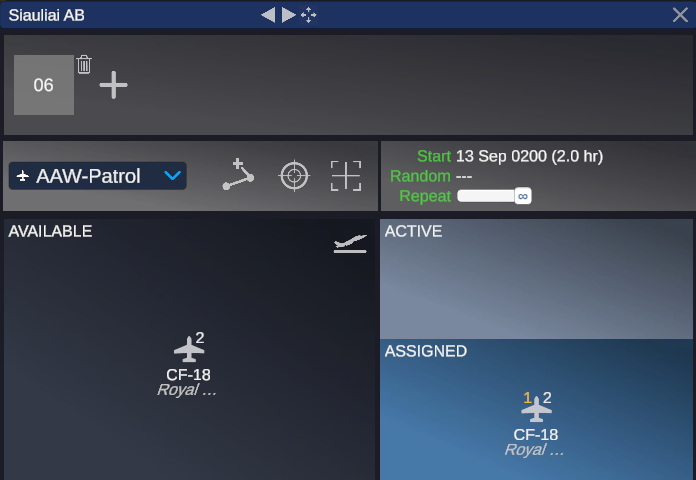
- Click an aircraft group in AVAILABLE or ASSIGNED. One icon can stand for several aircraft of the same class with the same status.
- Read the columns in the loadout window that opens.
- Click the header of the loadout you want.
Icons in ACTIVE do not open the loadout window. Bring the flight home first.
Read the loadout window#
The title gives the group size and the aircraft class, as 2x CF-18. Click the title to open the in-game database entry for that class.
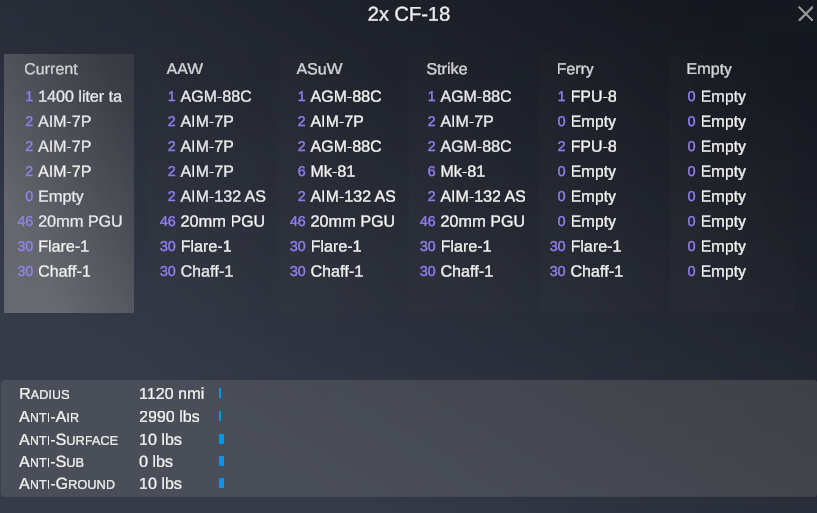
The pinned Current column at the left shows what the group leader carries right now. Every column beside it is one complete loadout, one line per station, with the quantity ahead of the store name. A station with nothing on it reads Empty. Scroll the row sideways when the aircraft has more loadouts than fit.
The named columns come from the database entry for the class. Six generated loadouts follow them: AAW, ASuW, ASW, Strike, Ferry, and Empty. Every aircraft therefore has a usable list, even one whose class defines none of its own.
A column header is a button, so clicking it applies that loadout to every aircraft the icon stands for. Store names inside a column are links instead, and clicking one opens its database entry rather than changing the load. Close the window with its X, or by clicking the same aircraft icon again.
Frames and the status line#
A colored frame marks a column whose stores the group already carries. Amber means loading is still running. The status line between the title and the columns names the loadout with the longest remaining preparation time and counts it down as HH:MM.
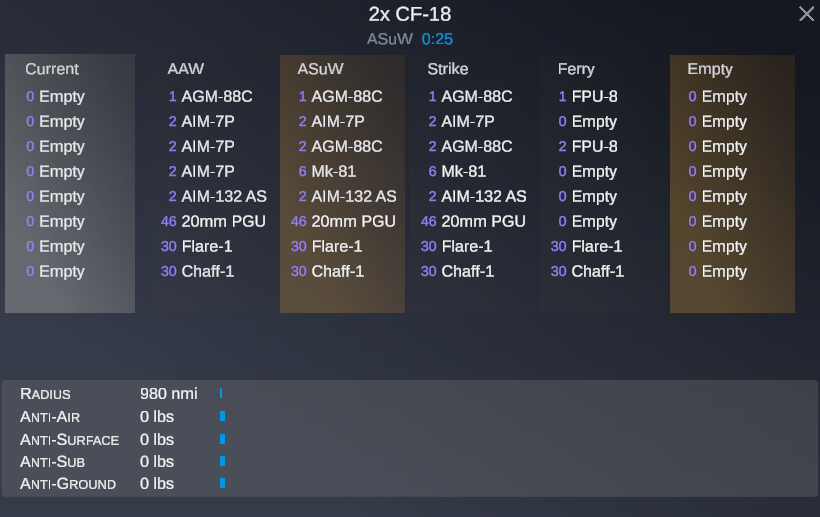
The frames turn green once every aircraft in the group finishes, and the status line clears. That time covers the whole group, so a single slow member holds every framed column at amber.
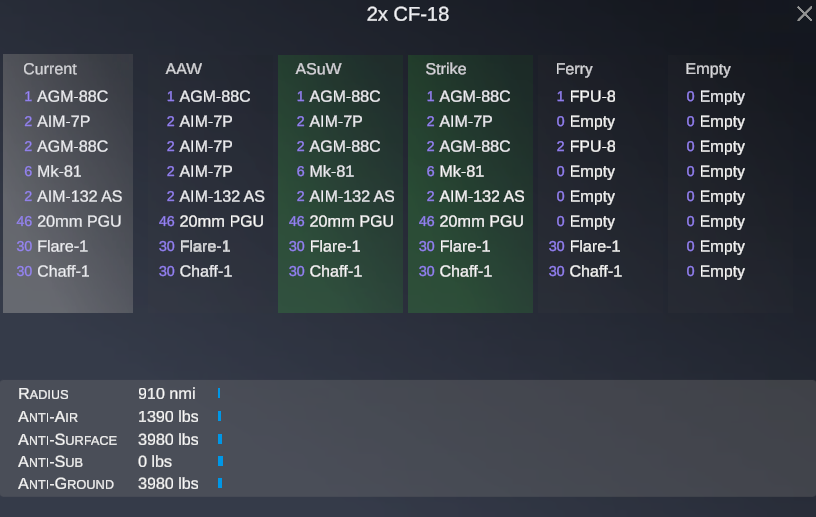
Matching works on contents rather than names, so two loadouts holding the same stores both light up. That is why Strike turns green beside ASuW above: the two columns list the same eight stores.
The summary bars#
Five bars sit below the columns.
| Bar | Meaning |
|---|---|
| Radius | Estimated mission radius |
| Anti-Air | Weight of weapons effective against air targets |
| Anti-Surface | Weight of weapons effective against ships |
| Anti-Sub | Weight of weapons effective against submarines |
| Anti-Ground | Weight of weapons effective against land targets |
The bars describe what the group leader carries at that moment. They do not preview the column you point at, and they move only after you apply a loadout. The two figures above make the difference plain: the four weapon bars sit at zero while the stores are still being loaded.
Open the window from a group in ASSIGNED and an Active quantity row appears with it. That setting controls how many of the group fly the mission. It does not limit rearming, because applying a loadout rearms every aircraft in the group.
Build a custom loadout#
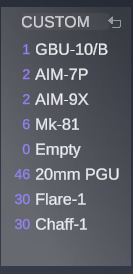
The Current column doubles as an editor. Point at a store name in that column and roll the mouse wheel to walk through the stores that station accepts.
- Wheel up steps forward through the list, and wheel down steps back.
- The list does not wrap. Rolling past either end empties the station.
- From an empty station, wheel up jumps to the first store and wheel down to the last.
- Quantity follows the store and cannot be edited here. Each store loads its own default count.
The header changes to CUSTOM on your first edit, and its button becomes live. Click it to apply the configuration to the group. The revert icon at the top right of the column discards your edits and restores the current loadout.
Change one aircraft in Flight Operations#
Use Flight Operations to rearm a single aircraft instead of a group. Click the Flight Ops button on the host's information panel.
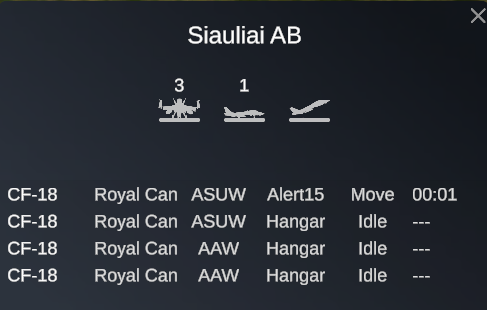
- Find the aircraft and click its loadout cell.
- In the Select Loadout window, compare the preparation time and mission radius on each row.
- Hover a loadout name to list its stores under the title.
- Click LOAD at the right of the row you want.
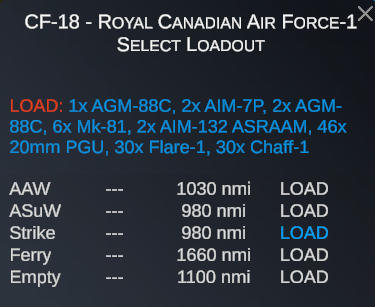
--- means the loadout needs no preparation. Hovering LOAD lists that row's stores in red and blue above.The window closes and the aircraft's row picks up the new loadout name. Its operation column reads Load while the time counts down, and the aircraft cannot launch until that finishes. Repeat the steps to change it again.
Match the loadout to the job before launch. Air-to-air loadouts suit interception, while anti-ship, strike, and anti-submarine loadouts carry weapons for their named target types. External fuel tanks buy reach at the cost of stations and payload.
Check what a loadout carries#
The detail line under the title of the Select Loadout window shows the aircraft's current stores whenever you hover nothing, so you can read a loadout without changing it.
For a wider comparison, open the class in the Aircraft database. Its Standard loadouts section lists the configurations defined for that class by service year. The in-game list stays the authority on what the selected host can prepare.