Targeting and weapons
Methods to put a weapon on a target and how to read launcher status.
Employing weapons in the game involves selecting a shooter, target, and weapon type and quantity. The game provides several ways to launch weapons to accommodate different preferences and level of control.
| Route | Best for | Speed |
|---|---|---|
| Hover attack menu | Shooting at a track you can see on the map | Fastest |
| Right-click menus | Deliberate engagements, setting a target without firing | Medium |
| Launcher buttons | Choosing the exact weapon and round count | Slowest |
Select the shooter first#
All targeting methods start with your own units selected, which the game calls 'hooking' a unit. Hooked units are the ones that will fire. A single unit or group of units can be selected.
| Action | Result |
|---|---|
| Left-click a unit | Hook it, and drop whatever was hooked before |
Ctrl and left-click | Add a unit to the hook, or remove it if it is already in |
| Left-drag a box | Hook everything of one kind inside the box |
Shift and left-drag | Add the box contents to the current hook |
Tab | Step to your next platform. Hold Shift to step backward |
| Left-click empty map | Clear the hook |
A box selects own unit symbols or track symbols. Hook several units and they act as one group. Weapon counts add up across the group, and the game spreads targets and rounds across its members for you.
The hover attack menu#
The fastest way to shoot. With your units hooked, rest the cursor over a hostile track for half a second. A cluster of weapon tiles appears around the symbol, one tile per weapon type that can engage that track.
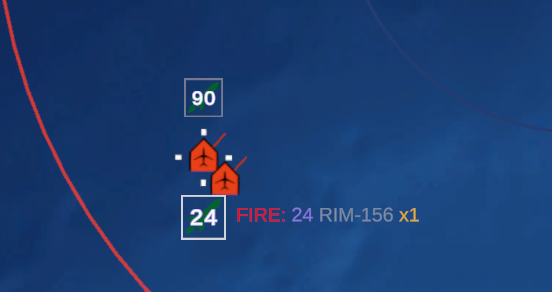
| Element | Meaning |
|---|---|
| Tile icon | The domain the weapon engages: air, surface, subsurface, or land |
| Green tile | At least one round of that type is ready to fire |
| Gray tile | Weapons are carried, but none can fire yet |
| Number on the tile | Rounds ready when green, rounds carried when gray |
Hover a tile and a panel beside it names the weapon. A ready weapon reads FIRE: in red, then the rounds available and the weapon class, and ends with the salvo size as x1. Roll the mouse wheel over the tile to change the salvo size, from one up to the ready count. Click the tile to launch.
After a launch, the cluster rebuilds to show what is left. You can fire again, switch to a different weapon, or move the mouse pointer away to close the menu.
What the tiles leave out#
The hover menu is a condensed list, not a full inventory. A weapon type is dropped from the cluster in several cases:
- The weapon cannot engage the track's domain. For example, an anti-air missile does not appear over a ship target.
- The launcher is not effective against the track, by the same test the Engage with menu uses.
- The launcher is empty.
- The range to target too far compared to the weapon's maximum range. Weapons still appear well before they are in range to cue the player that a weapon may soon be available.
When nothing survives that filter you get one gray tile with an X on it and the words No suitable weapons.
Turning the radar on instead of firing#
A gray tile due to an inactive fire-control radar reads ACTIVATE FC: in amber. Click it and the game turns on every inactive radar on the platforms carrying that weapon rather than attempting a launch that would fail. Watch the tile as the radar warms up. It turns green when the launcher reports ready, and the next click fires.
Going active may reveal the launching platform's location to enemy passive sensors.
Marking a contact hostile#
Hovering an unknown track gives a single tile instead, labeled Designate hostile. Click it to set the track's affiliation to hostile for your side. If you have units hooked, the cluster switches to the weapon tiles, so an unidentified contact can go from unknown to engaged in two clicks.
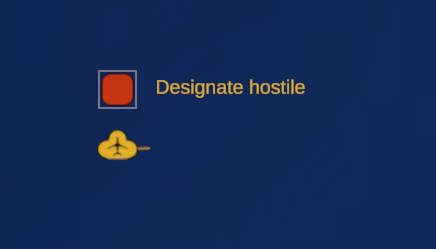
Unknown tracks take priority over hostile ones, so this stays available while your own units are hooked.
Hovering does not commit you#
Opening the menu temporarily designates the hovered track as the target of every hooked unit, because a launcher reports whether it is effective against the platform's current target. The game remembers what each unit was targeting before you hovered and puts it back when the menu closes, unless you fired. A shot keeps the new target.
The hover menu closes shortly after the cursor leaves the track, the tiles, and the summary panel. It also closes if the hooked unit changes, and it never opens while a right-click context menu is open.
The right-click menus#
Slower and more explicit. Use it when you want to set a target without shooting, pick a specific launcher, or work through an engagement one step at a time.
Right-click a track with your units hooked#
Hook one or more of your own units, then right-click a track. The menu names the track along the top, as Track 0042 for a single contact or Track Group 0042 (4) for a group.
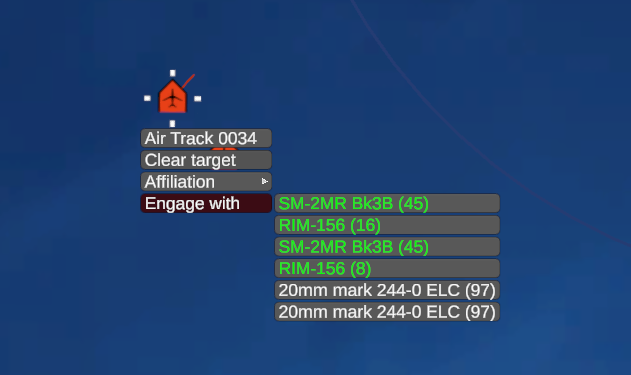
| Entry | What it does |
|---|---|
| Target | Assigns the track to your hooked units and marks it hostile |
| Clear target | Drops the assignment. Replaces Target once everything is assigned |
| Affiliation | Sets the track hostile, neutral, friendly, or unknown for your side |
| Attack | Aircraft only. Clears current tasks and runs an attack on the target |
| Engage with | Lists the weapons available against this track. Click one to launch a round |
Target and Engage with both stay open after a click, so you can fire several rounds without reopening the menu. Each row in Engage with carries a weapon name and, where more than one round is aboard, the quantity. A click launches one.
Rows are one per launcher rather than one per weapon type, so the same weapon appears more than once when several launchers carry it. Green text marks a launcher that is ready right now. Gray text means it is loaded but blocked, and the launcher buttons will tell you why.
With a group hooked, targets go out round-robin from a random starting member, so four fighters against four contacts do not all pile onto the same one. Engage with aggregates by weapon name across the group.
Right-click your own unit#
Right-click a hooked unit with no track under the cursor and you get the platform menu. Weapons are under Target.
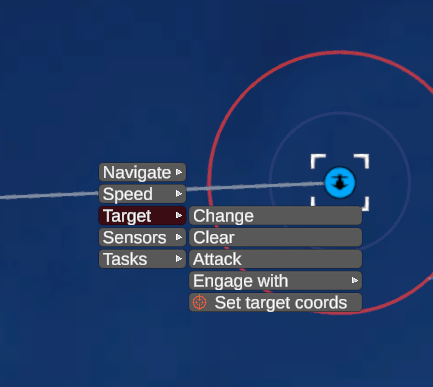
| Entry | What it does |
|---|---|
| Select | Click a track on the map to make it the target. Reads Change when a target is already set |
| Clear | Drops the target |
| Attack | Runs an attack on the current target |
| Intercept | Aircraft only. Flies an intercept to the current target |
| Engage with | The same weapon list as above |
| Set target coords | Click a point on the map to aim at coordinates rather than a track |
Attack, Intercept, and Engage with appear only once a target is set and the unit has a weapon that can engage it. If the submenu looks short, the unit has no target yet or lacks suitable weapons.
Set target coords reads the terrain height at the point you click and sends the position to every launcher on the unit that can shoot at coordinates. This allows you, for example, to use a land-attack missile against a fixed position, or put a torpedo into open water, when there is no specific track to shoot at.
The launcher buttons on the hooked unit panel#
The Weapons panel on the hooked unit display is another deliberate option. It shows what the hooked units carry regardless of target state. It also allows setting a salvo size before you commit.
The panel opens in category mode, with up to four buttons.
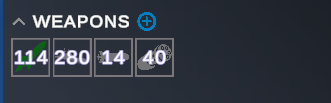
| Button | Weapons it holds |
|---|---|
| Anti-air | Weapons that engage aircraft and missiles |
| Anti-surface | Weapons that engage ships |
| Anti-submarine | Weapons that engage submarines |
| Land attack | Weapons that engage ground targets and installations |
A category with nothing aboard is left out entirely. Colors and numbers work as they do on the hover tiles, with one addition: a button turns green only when a suitable weapon is available for the current target. An anti-air button stays gray while your target is a ship, even with missiles ready.
| Input | Effect |
|---|---|
| Hover | Shows the weapon summary, and highlights the round on the unit graphic |
| Right-click | Cycles to the next weapon in that category, shortest range first |
| Mouse wheel | Sets the number of rounds, from one up to the ready count |
| Left-click | Launches |
The default mode automatically selects a weapon for the current target, which is typically the shortest range weapon that is ready. You can right-click the buttons to cycle the weapon type if multiple are available. Check the text summary before you fire.
A launch spreads the round count across the target's whole track group, so twelve rounds against four contacts send three at each. With no target set, the rounds go to the target coordinates instead if coordinates are assigned and the weapon supports this launch mode.
Detail mode#
The round toggle beside the panel title switches from four category buttons to one button per weapon type carried. Each button carries the weapon icon and the quantity aboard, and hovering one names the class in the summary below. Use detail mode when you want to select a particular weapon to employ.
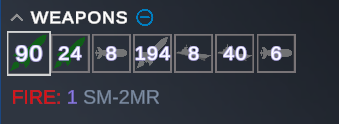
Hover, wheel, and click behave the same. Right-click cycling is gone because each button is already one weapon type.
Some equipment does not appear in either mode, including guns with a range under 2 km, which are point defense the crew runs without you, and sensor pods loaded in weapon stations.
When a weapon will not fire#
Hover a gray button or tile and the summary panel gives the reason the launcher reports. These are common status codes:
| Status | What it means |
|---|---|
Ready | The launcher will fire on the next click |
No target | Nothing is designated. Set a target, or use Set target coords |
Target out of range | Close the distance, or pick a longer-ranged weapon |
Target too close | Inside the weapon's minimum range |
Fire control inactive | The guiding radar is off. Clicking the tile turns it on |
Missing fire control | The platform has no radar that can guide this weapon |
Not detected by fire control | The fire-control radar cannot see the target, even though it may be in the common operating picture |
No free fire-control tracks | Every guidance channel is busy with another engagement |
Launch violates ROE | The rules of engagement do not allow this shot |
Busy | The launcher is still cycling from the last round |
Loading from magazine | A reload is in progress |
Empty | Nothing left in the launcher |
Too deep, Too low, Too high | The launching platform is outside the weapon's launch envelope |
Target outside field of view | The launcher has a limited sector that does not cover the target |
Damaged | The launcher is out of action |
Launch violates ROE is based on the rules of engagement that are set per side and per domain. For example, a TIGHT setting holds fire against anything not positively identified as hostile. Mark the track hostile, from the hover menu or the Affiliation submenu, or adjust the ROE. See Rules of engagement.
Not detected by fire control indicates the launching platform needs to track the target with its own sensor before engaging. Seeing a track on the map does not mean every unit can shoot at it. The map represents the commander's common operating picture, and individual units may have a different set of tracks.