Publishing to Workshop
Upload a finished scenario to the Steam Workshop, keep it up to date, and play what other people have published.
The Steam Workshop is how scenarios move between players. Publishing takes one button, and the game handles the file copying, the preview image, and the Workshop entry itself.
Before you upload#
Open your scenario in the browser and check three things, because Steam takes them from the scenario file rather than asking you at upload time.
- Title. It becomes the Workshop entry's title. Rename it in the editor, not on the Steam page, or the next upload will overwrite what you typed there.
- Description. It becomes the Workshop description. This is the shared description from the scenario information window, not a side's briefing.
- Thumbnail. It becomes the preview image. Steam rejects previews over 1 MB, so the game shrinks anything larger before it uploads.
The scenario also has to live in one of your own folders. Scenarios that shipped with the game cannot be published.
Upload#
Select the scenario and look beside its title in the detail panel.
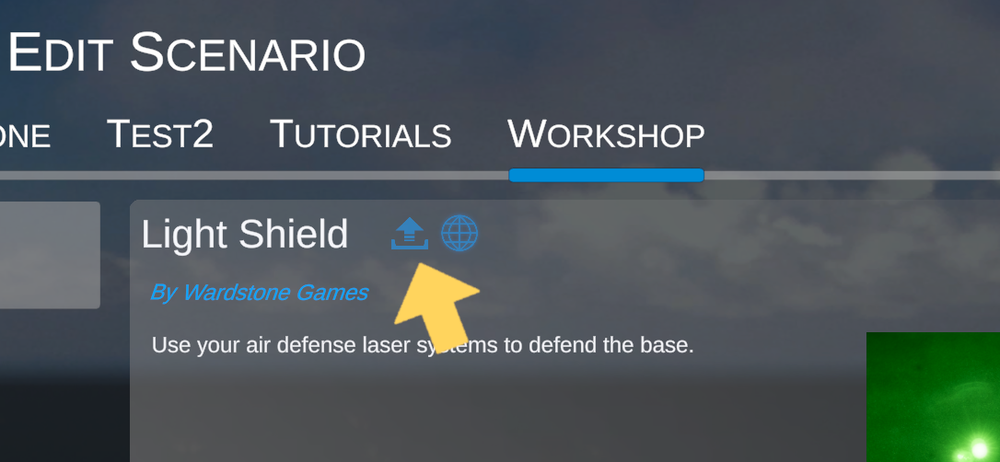
Click the arrow and the game asks for change notes, which appear in the Workshop entry's history. Leave them blank on a first upload if you like. Confirm, and the arrow pulses while the transfer runs.
The first upload creates the Workshop entry and writes its ID back into your scenario file, so the file and the entry stay tied together from then on. Steam may ask you to accept the Workshop legal agreement before it will accept a first item. Take the link it offers, accept, then upload again.
When the upload finishes, the arrow is replaced by a green disc with a check.
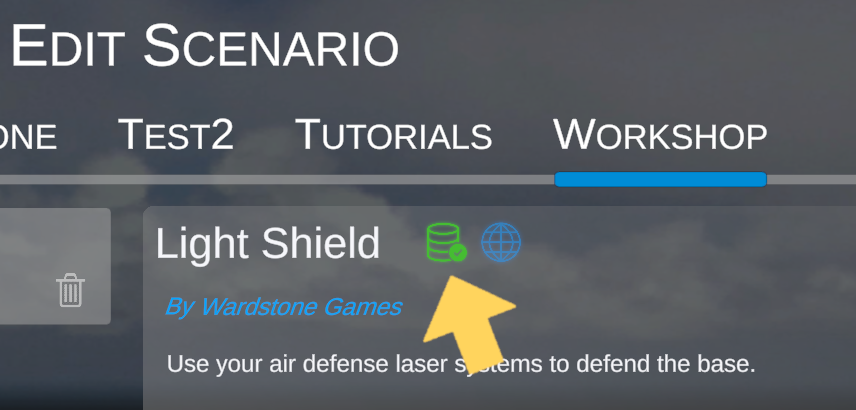
Between the two, the icon beside your scenario tells you where it stands.
| Icon | Meaning |
|---|---|
| Blue arrow | Your local copy is newer than the published one. There is something to upload |
| Green disc with a check | The published copy is current. Nothing to do |
| Globe | Opens the Workshop page in the Steam overlay |
| Neither arrow nor disc | The scenario has never been published, or it is not yours |
A new Workshop item is private until you change that. Open the entry with the globe icon and set its visibility to public on the Steam page. Until you do, nobody else can find or subscribe to it.
Uploading again later works the same way. Save your changes in the editor, come back to the browser, and the arrow reappears because the file on disk is now newer than the published copy. Each upload carries its own change notes.
Along with the scenario file itself, the game uploads the thumbnail and, if one exists beside the scenario, its tutorial file. Entries are tagged Scenario.
Playing what others publish#
Subscribe on the Steam Workshop, in the browser or through the in-game overlay. The game collects subscribed items on startup and copies each one into the Workshop tab, where it sits beside your own scenarios and starts like any other.
Updates arrive the same way. When a scenario's author publishes a new version, the game replaces its local copy the next time it checks, and only when the published copy is genuinely newer than what you already have.
To stop, select the scenario and use Unsubscribe in the detail panel. Steam then stops sending you updates for it.
Subscribed scenarios are read only in the same way stock scenarios are. To take one apart and see how it was built, open it in the editor and use Save as to write a copy into a folder of your own first.